
Drivers access SmartRoutes through a dedicated mobile app, separate from the desktop platform used by admins and dispatchers.
This guide covers where to download it, how to log in, and what you'll be able to do once you're in.
Getting your login details
If you're a driver, you won't need to create your own account.
Your company's admin sets this up for you as part of adding you as a team member, and they'll provide you with the email and password to log in.
If you haven't received these yet, or you're unsure what to use, check with your admin directly rather than trying to sign up on your own.
How to log in
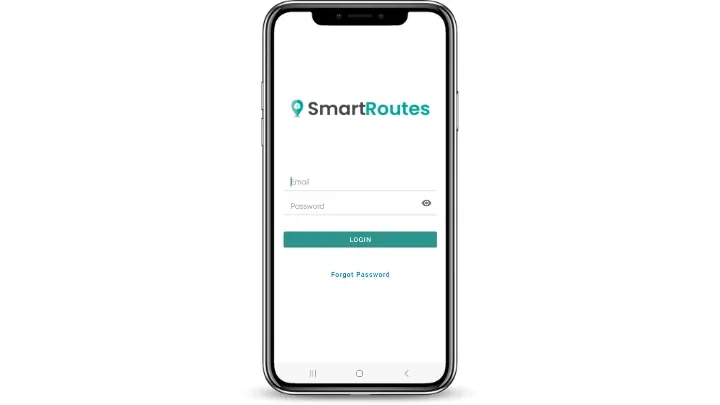
- Download the SmartRoutes app from the Apple App Store (iPhone) or Google Play (Android).
- Open the app once installed.
- Enter the email and password provided by your admin.
- Tap Login to access your account.
What you can do once you're logged in
The driver app is where your entire workday happens once a route has been dispatched to you. From the app, you can:
- View your assigned route: see every stop on your route for the day, in order
- Get turn-by-turn navigation: the app opens directions in your chosen navigation app (Google Maps, Waze, or Apple Maps) so you're guided stop to stop
- Capture proof of delivery: depending on what your admin requires, this might include a photo, an e-signature, or both
- Receive push notifications: you'll be notified directly on your phone if your route changes after dispatch, so you always know if a stop has been added, removed, or reordered
Everything updates in real time, so if your admin makes a change to your route midday, it appears in your app immediately.
Didn’t answer your question?
You can see our other guides here or contact support at support@smartroutes.io.
Please provide us with some additional feedback
Thanks for your feedback. It is greatly appreciated