
SmartRoutes can automatically send push notifications to your drivers whenever something important changes on their routes. This reduces the need for manual calls or messages and helps drivers stay up to date in real time.
Open Driver Notification Settings
Driver notifications are managed from your account settings.
- In the SmartRoutes web app, go to Settings.
- Under Driver App, select Driver Notifications.
- You’ll see four toggle switches, each controlling a different type of push notification.
When your account is created, all driver notifications are turned off by default. You can turn them on or off at any time, and each setting is controlled individually.
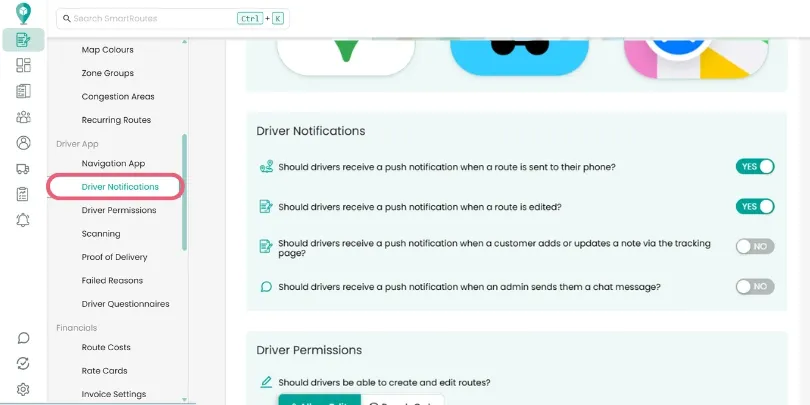
Notification types and when to use them
1. Notify drivers when a route is sent to their phone
Setting: “Should drivers receive a push notification when a route is sent to their phone?”
When this is turned on:
- Drivers receive a push notification as soon as you click Send to Drivers on a finalized route.
- The notification tells them a new route is ready, so they can open the app, review their stops, and start driving without delays.
Use this if you want drivers to be alerted immediately whenever a new route is assigned, and to avoid having to call or text them separately.
2. Notify drivers when a route is edited
Setting: “Should drivers receive a push notification when a route is edited?”
When this is turned on:
- If a route has already been dispatched and you make changes (for example, reorder stops, add/remove deliveries, or update time windows), SmartRoutes sends a push notification to the driver automatically.
- The driver knows the route has changed and can reopen the app to see the latest version instead of following an outdated plan.
Use this when you frequently adjust routes during the day and want to be sure drivers are always working from the most up‑to‑date information.
3. Notify drivers when a customer adds or updates a note
Setting: “Should drivers receive a push notification when a customer adds or updates a note via the tracking page?”
When this is turned on:
- Drivers receive a push notification whenever a customer adds or edits a note on the tracking page (for example, “Use side entrance,” “Gate code is 1234,” or “Please call on arrival”).
- The notification prompts the driver to check the updated instructions before they arrive at the stop.
Use this to make sure drivers never miss customer-specific instructions, which can reduce failed deliveries and improve customer experience.
4. Notify drivers when an admin sends them a chat message
Setting: “Should drivers receive a push notification when an admin sends them a chat message?”
When this is turned on:
- Any in‑app chat message sent from the admin/dispatcher to the driver will trigger a push notification.
- Drivers see new messages even if the app is in the background, helping them respond quickly to issues like urgent changes, collection requests, or customer queries.
Use this to keep communication between office staff and drivers timely and visible, without relying solely on phone calls or SMS.
Related Guides
Didn’t answer your question?
You can see our other guides here or contact support at support@smartroutes.io.
Please provide us with some additional feedback
Thanks for your feedback. It is greatly appreciated