
Every delivery takes a few minutes of handover time, whether that's finding the right door, getting a signature, or unloading a larger item.
If SmartRoutes doesn't know how long each stop actually takes, your routes will look efficient on paper but run behind schedule in practice.
Stop duration lets you account for this at the planning stage, either per stop or as a default across your whole account.
Set a default stop duration for your account
If most of your deliveries take roughly the same amount of time, set a default so every new stop automatically inherits it, without needing to be entered manually each time.
How to do it
- Go to Settings > General Settings > Basic Settings.
- Find Default stop duration (minutes).
Enter the number of minutes that best reflects your typical handover time.
SmartRoutes ships with a default of 5 minutes, but this can be changed to whatever suits your operation, whether that's 2 minutes for quick drop-offs or 20+ minutes for deliveries involving larger items or installations.
Set a stop duration for an individual stop
If a specific stop needs more or less time than your account default, for example a bulk order or a delivery that includes assembly, you can override it for that stop only.
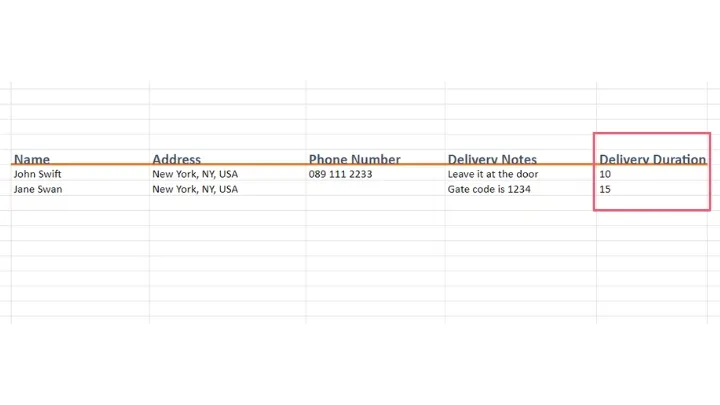
Using a spreadsheet
Add a column headed Delivery Duration and enter the number of minutes needed for each stop. This can be the same across every row or vary stop by stop, depending on the size and type of each delivery.
Manually
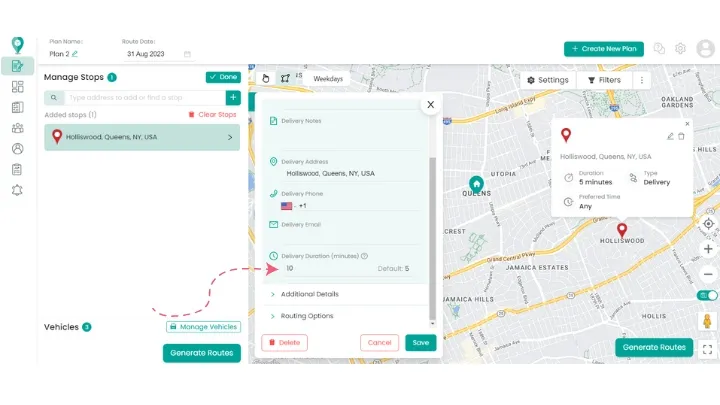
When adding or editing a stop, enter the required minutes in the Delivery Duration field on the stop form.
Both methods work the same way, it's a matter of which fits how you're adding stops in the first place.
Top tip: Setting a duration on an individual stop overrides the account-wide default for that stop only.
Related guides
Didn’t answer your question?
You can see our other guides here or contact support at support@smartroutes.io.
Please provide us with some additional feedback
Thanks for your feedback. It is greatly appreciated