
Getting the most out of your fleet means making sure every van and truck leaves the depot as fully loaded as possible, without exceeding what it can safely carry.
SmartRoutes lets you define vehicle constraints, such as weight, volume, or unit limits, so the route planning algorithm automatically respects your fleet's real capabilities.
Set up Vehicle Capacities
- Go to Settings.
- Under Vehicle Settings, select Capacities.
Capacities let you cap the amount of goods a vehicle can carry at one time, based on whatever unit matters most to your operation, such as weight, volume, pallets, or units.
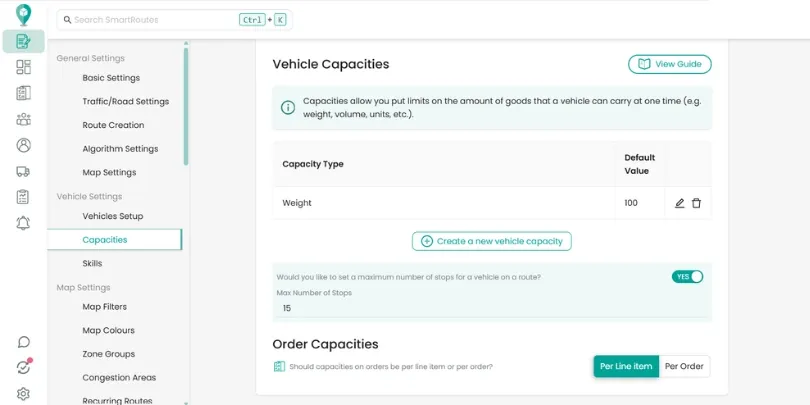
- Click Create a new vehicle capacity.
- Enter a Capacity Type (for example, "Weight," "Volume," or "Pallets").
- Enter a Default Value for that type (for example, 100 for Weight).
- Click Save.
The new capacity type will appear in the table, where you can edit or delete it at any time.
You can create multiple capacity types if your fleet needs to track more than one constraint at once, for example, both weight and volume, so the algorithm respects whichever limit is hit first when building routes.
Set a maximum number of stops per vehicle
Beyond weight or volume, you can also cap how many stops a single vehicle handles on one route:
- Toggle "Would you like to set a maximum number of stops for a vehicle on a route?" to YES.
- Enter your desired limit in the Max Number of Stops field (for example, 15).
This is useful if driver shift length, delivery complexity, or service-time constraints mean a vehicle shouldn't be loaded with too many stops, even if it technically has capacity left.
Choose how order capacities are calculated
The Order Capacities section controls how the capacity values on your orders are measured against the vehicle limits you just set.
- Per Line Item: capacity is calculated based on each individual line item within an order (useful if orders often contain multiple products with different sizes/weights).
- Per Order: capacity is calculated based on the order as a whole, treating it as a single unit regardless of how many line items it contains.
Choose Per Line Item if your orders typically bundle several different products that should each count toward the vehicle limit individually. Choose Per Order if you'd rather treat each order as one fixed-size unit, which is simpler if most orders are similar in size.
Didn’t answer your question?
You can see our other guides here or contact support at support@smartroutes.io.
Please provide us with some additional feedback
Thanks for your feedback. It is greatly appreciated