
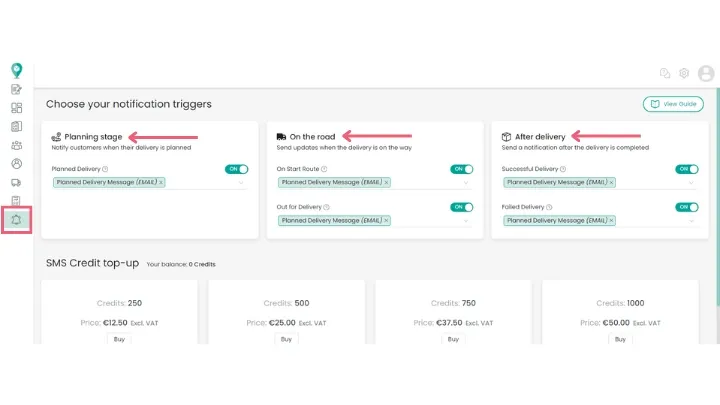
To setup notifications you can choose the notifications tab on the left hand navigation menu.
From here you can choose when you want notifications to be sent.
Notifications Types
Planning Stage
- Planned Route Start: Send an advance alert a custom number of hours before the scheduled route start time.
- Planned Delivery: Notify customers that their order has been scheduled on a route, providing an estimated delivery window and live tracking link.
On the Road
- On Start Route: Trigger a notification as soon as the driver taps "Start Route" in their mobile app to signal that deliveries are underway for the day.
- Out for Delivery: Send a real-time update when the driver is actively traveling to that specific drop-off.
- Stops Ahead: Trigger an automated alert when the driver is a designated number of stops away (e.g., 2 stops away), giving the customer adequate time to prepare.
After Delivery
- Successful Delivery: Instantly notify the customer when their package has been delivered, confirming completion and providing proof of delivery details if configured.
- Failed Delivery: Automatically alert the recipient if an attempt was unsuccessful, providing context on why the stop failed and sharing links to reschedule delivery.
Top Up SMS Credits
While email notifications use your account’s standard service, SMS messages require message credits:smartroutes
- Review your current credit balance directly on this screen.smartroutes
- Select a top-up bundle (250, 500, 750, or 1,000 credits) to purchase additional SMS capacity instantly.
Please note: The cost of SMS notifications is based on our provider’s rates and is simply passed on to you without any markup.
Create and Format Message Templates
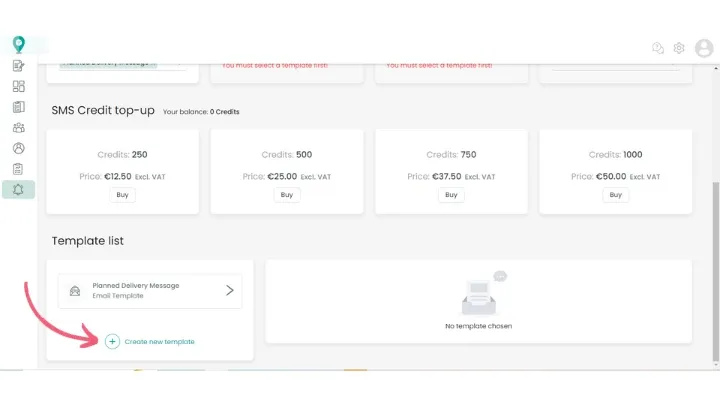
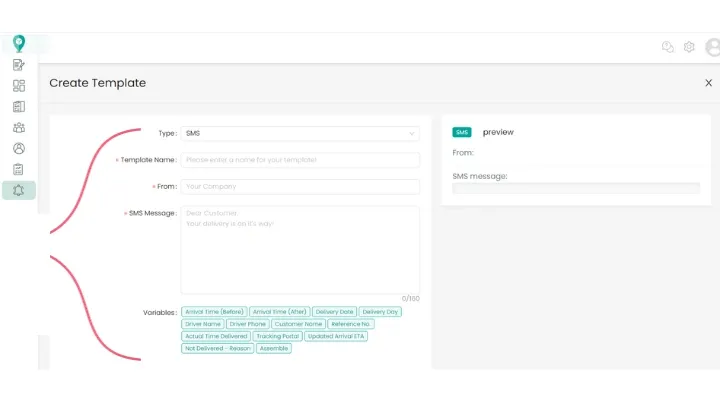
Scroll down to the bottom of the notifications screen and click Create new template to build custom SMS or email messages.
You can insert dynamic placeholders—such as customer names, planned arrival times, and live tracking URLs—which populate automatically for each stop.
Formatting Your Email Notifications
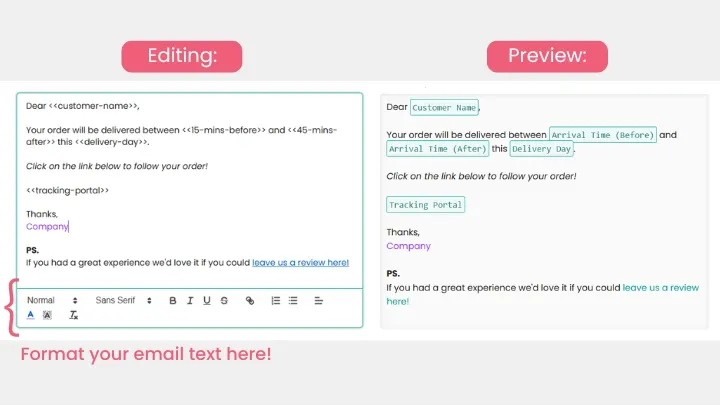
When creating or editing an email template, you can use rich text formatting to customize the appearance of your message. This includes:
- Bold, Italic, and Underline text
- Changing font colors
- Adding bullet points
- Inserting clickable hyperlinks (e.g., linking to your Google review page or customer support site)
To apply these formatting options, use the toolbar available in the email template editor. This allows you to enhance the readability of your notifications and include important links in a clear, professional way.
Related Guides
- How to Enable Driver Push Notifications
- How to Set Up Operational Alerts
- How to Access Driver Analytics and Reports
Didn’t answer your question?
You can see our other guides here or contact support at support@smartroutes.io.
Please provide us with some additional feedback
Thanks for your feedback. It is greatly appreciated