
By configuring proof of delivery rules, dispatchers can require drivers to capture specific proof before they are permitted to mark stops complete or report failures in the mobile app .
Access Proof of Delivery Settings
To configure POD rules for your account:
- Click on Settings in the main menu.
- Under Driver App, select Proof of Delivery.
You will see configuration sections for Proof of Delivery (successful completion actions) and Proof of Failure (unsuccessful delivery actions).
Important: Changes made to POD settings update automatically and will take effect the next time drivers log in to the SmartRoutes mobile application.
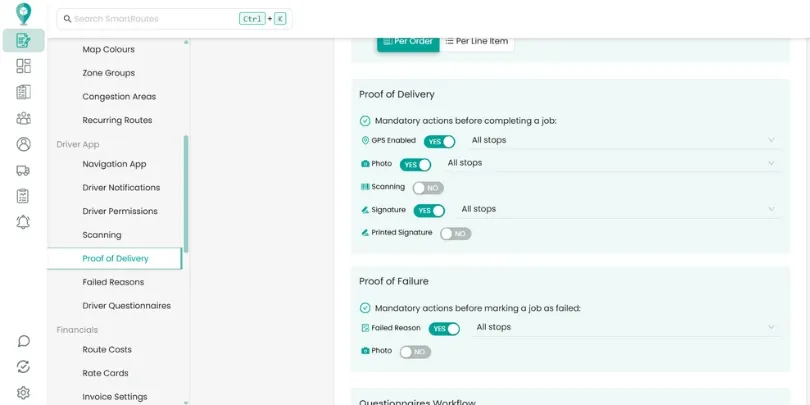
Configure Mandatory Actions for Completed Stops
Under the Proof of Delivery section, you can select which actions drivers must perform before completing a stop :
- GPS Enabled: Requires the driver's device to have GPS location enabled when completing the stop, allowing dispatchers to verify exact driver coordinates at the time of delivery.
- Photo: Mandates that the driver capture one or more photos of the package or service location before completing the job.
- Scanning: Enforces barcode verification at the point of delivery (configured in detail within scanning settings).
- Signature: Requires the driver to capture an on-screen electronic signature from the recipient.
- Printed Signature: Mandates that the recipient’s printed name be typed in alongside their signature to verify who accepted the parcel.
For each rule, use the dropdown menu to choose where the rule applies:
- All Stops: Enforced across every stop on the route.
- Only Deliveries: Enforced only on delivery stops.
- Only Collections: Enforced only on pickup or collection stops.
Configure Proof of Failure Rules
When a driver cannot complete a scheduled stop—such as when a customer is not home or access to an apartment building is blocked—you can require documentation under Proof of Failure :
- Failed Reason: Mandates that the driver select or enter a specific reason why the job could not be completed.
- Photo: Requires the driver to take a photo showing why the stop was unsuccessful (such as a closed business gate or inaccessible doorway) before marking the job failed.
Just like completion rules, you can apply failure requirements to All Stops, Only Deliveries, or Only Collections.
How POD Rules Work in the Driver App
When rules are set to mandatory, the mobile app guides drivers must complete the required steps.
Drivers cannot tap "Marked as completed" or submit a failed stop until each mandatory field has been captured.
All captured photos, GPS timestamps, recipient names, and signatures sync instantly back to your desktop dashboard for real-time visibility.
Related Guides
- How to Take Proof of Delivery
- How to Scan Items on and off the Delivery Vehicle
- How to Set Up Driver Questionnaires
- How to Set Up Customer Notifications
Didn’t answer your question?
You can see our other guides here or contact support at support@smartroutes.io.
Please provide us with some additional feedback
Thanks for your feedback. It is greatly appreciated