
Load Balancing distributes route workloads more evenly across your drivers, rather than leaving one driver with a long day while another finishes early.
How to turn on Load Balancing
- Log in to the desktop app.
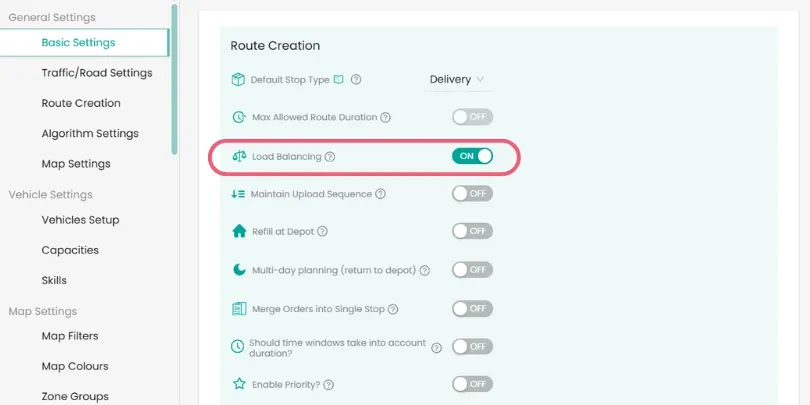
- Go to Settings > Route Creation.
- Toggle Load Balancing to ON.
- Click Save.
How it works
Once Load Balancing is turned on, routes are optimized to even out driver workloads rather than assigning stops purely by proximity or efficiency alone.
For example, if one driver is scheduled 9am-5pm and another 9am-1pm, Load Balancing will re-optimize the routes so both drivers finish around the same time, for example both working 9am-3pm, rather than one driver carrying a disproportionate share of the stops.
This applies at the point routes are generated or re-optimized, so any change to drivers, vehicles, or stops after that will need a re-optimize to reflect the balancing again.
When to use it
Load Balancing is worth turning on if you regularly notice a big gap in finish times between drivers on the same day, or if you want workload spread evenly by default rather than manually rebalancing stops between drivers yourself.
If your priority is minimizing total distance or time instead, rather than evening out workload, you may prefer to leave this off and rely on the standard route optimization instead.
Didn’t answer your question?
You can see our other guides here or contact support at support@smartroutes.io.
Please provide us with some additional feedback
Thanks for your feedback. It is greatly appreciated