
If you run the same route on a regular schedule, you don't need to recreate it each time. Recurring routes let you set it up once and have it repeat automatically.
Step 1: Create and dispatch your first route
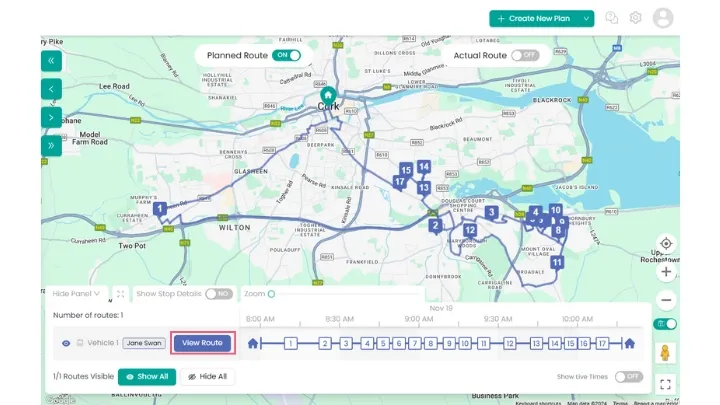
Set up and dispatch your route as normal. Once it's live, click View Route to open it.
If you haven't created a route yet, see How to Plan a Route for the full walkthrough.
Step 2: Access Recurring Routes
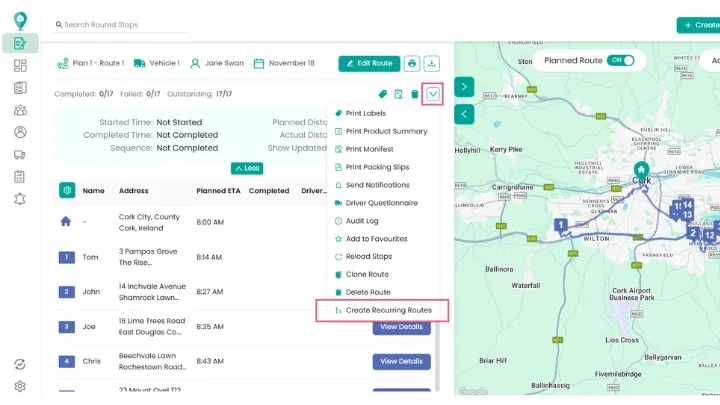
From the View Route screen, click the dropdown arrow and select Create Recurring Routes from the menu.
Step 3: Configure your recurring route
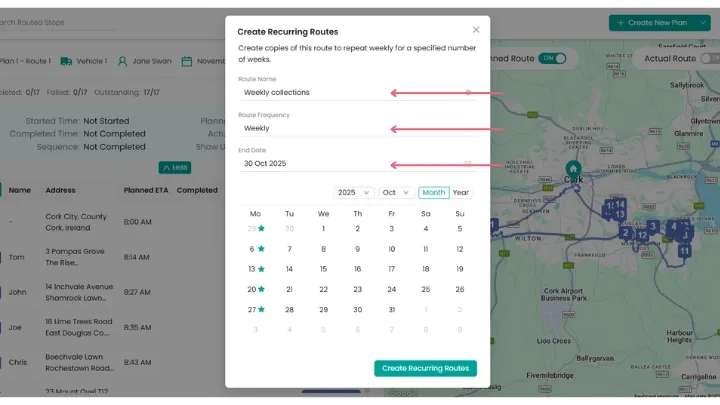
A pop-up window will appear where you can:
- Name your recurring route
- Choose how often it should repeat, for example weekly or bi-weekly
- Set an end date for the recurrence, up to one year from the start date
Setting a clear name here is worth doing properly if you run several recurring routes, since it's what you'll see listed on the calendar going forward, and a vague name gets harder to identify the more routes you set up.
Step 4: View it on the planning calendar
Once set up, the recurring route appears on your planning calendar for every date it's scheduled. In the example below, the route repeats every Tuesday.
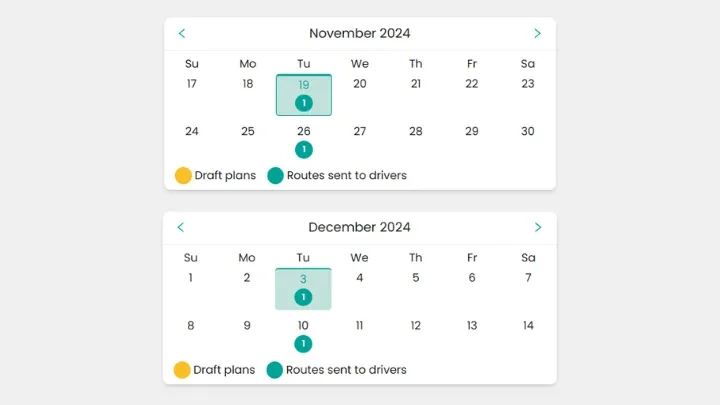
Each occurrence is generated as its own route, so you can open, edit, or dispatch any individual date the same way you would a one-off route.
Editing a recurring route
Plans change, and recurring routes are built to handle that without extra setup. When you edit an occurrence, you'll be asked whether to:
- Update just that week's route: changes apply to that single occurrence only
- Apply changes to all future recurring routes: changes carry forward to every future occurrence
This means a one-off change, like a stop being cancelled for a single week, doesn't require cancelling or rebuilding the whole recurring schedule. For the full breakdown of what can be adjusted once a route is live, see How to Edit a Draft Route or, if it's already been dispatched, How to Edit a Live (Dispatched) Route.
Didn’t answer your question?
You can see our other guides here or contact support at support@smartroutes.io.
Please provide us with some additional feedback
Thanks for your feedback. It is greatly appreciated