
Adding a driver takes a few minutes from the desktop app, and once saved, they can log in from their own device using the mobile app.
Step 1: Open Team Members
- Log in to SmartRoutes on desktop.
- Click the Team Members icon in the left-hand menu.
You'll see a list of everyone currently set up on your account.
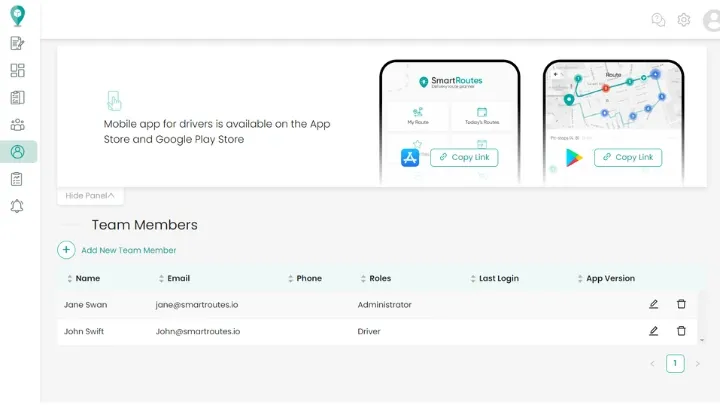
Step 2: Add a new driver
- Click Add New Team Member.
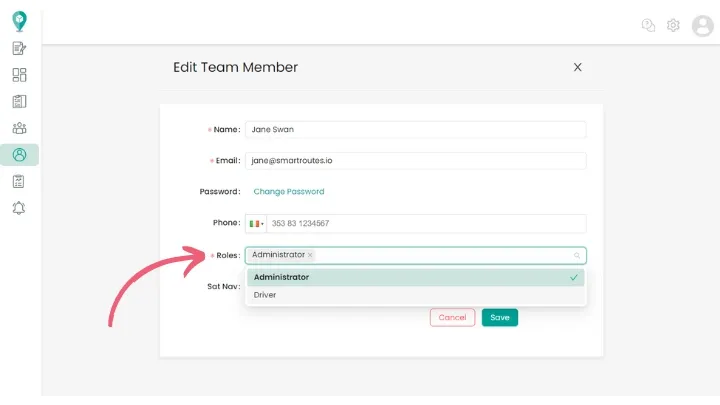
- Enter the driver's name, email, password, and phone number.
- In the Role dropdown, select Driver.
- Set their default navigation app (Google Maps, Waze, or Apple Maps), used for turn-by-turn directions once they're on the road.
- Click Save.
Repeat this process for each driver you need to add. There's no limit on how many you can set up.
Keep the password you enter here to share with the driver, since this is what they'll use to log in for the first time. There's no automatic invite email, so if you don't save and pass it on at this step, you'll need to reset it later.
Step 3: Give the driver access
Once added, drivers access their routes through the SmartRoutes mobile app rather than the desktop platform. They'll need to:
- Download the app from the Apple App Store or Google Play.
- Log in using the email and password you set up for them.
For the full driver-side walkthrough, see Where do I log in as a driver?
Managing drivers after setup
Once a driver is added, you can return to Team Members at any time to update their details, reset their password, or remove their access if needed.
Didn’t answer your question?
You can see our other guides here or contact support at support@smartroutes.io.
Please provide us with some additional feedback
Thanks for your feedback. It is greatly appreciated