
Driver pay profiles let you pay drivers according to the work they actually carry out on their routes.
Because different drivers may be paid in different ways (and at different rates), you can set up multiple profiles, such as standard, experienced, or new joiner, and assign the right profile to each driver.
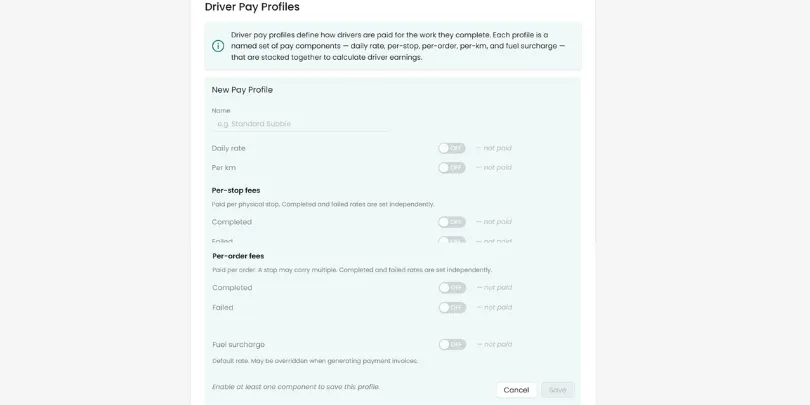
Step 1: Create a pay profile
- Go to Settings > Driver Pay Profiles.
- Click Add Pay Profile.
- Name the profile, for example Standard Driver.
- Choose how the driver is paid. You can pay by:
- Daily rate
- Per mile
- Per stop (completed)
- Per order
- Enter the rate, for example $5 per completed stop or $4 per order.
- Optionally, add a fuel surcharge, entered as a percentage on top of the base rate to account for fuel costs (for example an extra 5%).
- Click Save.
You can repeat this process to create as many profiles as you need.
Step 2: Assign a pay profile to a driver
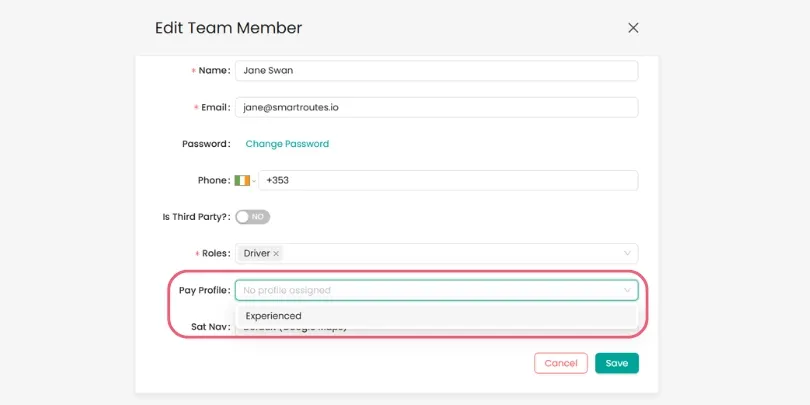
Once your pay profiles are set up, assign the correct one to each driver.
- Go to Team Members.
- Find the driver you want to assign a profile to (any team member with the Driver role).
- Select the pay profile from the dropdown, for example Experienced.
- Click Save.
Step 3: View driver payments
After profiles are assigned, you can see what each driver is owed for a given period.
- Go to Settings > Driver Payments.
- Select the driver; their assigned pay profile is shown next to their name.
- Choose a date range to calculate, for example the last 30 days.
- The total amount due is calculated automatically, based on the driver’s pay profile and the work completed (stops, miles, orders, or days, depending on the profile).
- Click into the total to see a breakdown by route and date, showing exactly which routes and jobs are included.
Related guides
- Setting Up Users in SmartRoutes
- How to Add Drivers
- How to Change Driver Settings
- How to Set Up Route Costs
- How to Set Up Rate Cards and Generate Invoices
Didn’t answer your question?
You can see our other guides here or contact support at support@smartroutes.io.
Was this guide helpful?
Yes
No
Please provide us with some additional feedback
Submit
Thanks for your feedback. It is greatly appreciated