
Whether you need to add a new vehicle to your account or remove an existing one, this guide will walk you through the process step by step. Follow the instructions below to make the necessary changes to your vehicle list.
Accessing Fleet Settings
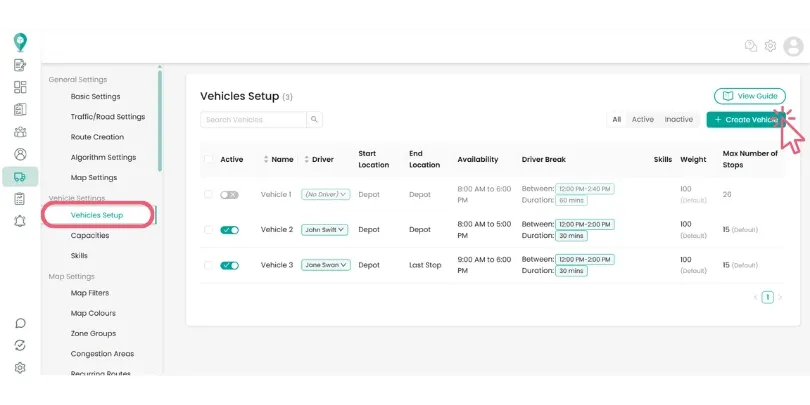
To view your fleet, click the Vehicles icon in the sidebar navigation or go to Settings > Vehicle Settings > Vehicles Setup.
The main table lists every vehicle in your fleet alongside key parameters such as assigned drivers, operating hours, depot locations, and capacity constraints. You can use the quick filters at the top right to switch between all, active, or inactive vehicles.
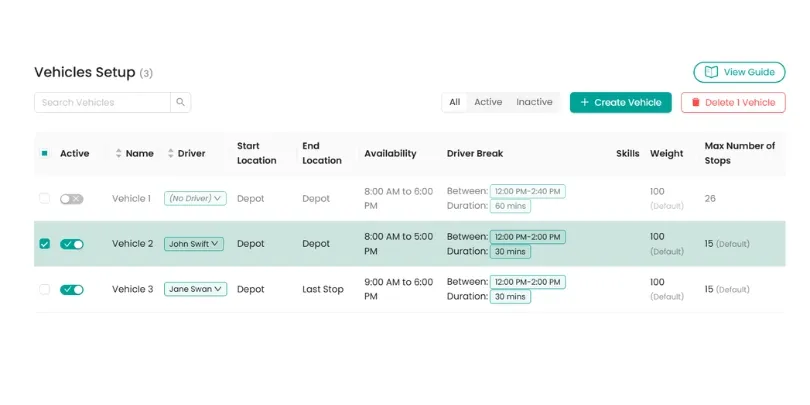
To remove a vehicle, click on the vehicle you would like to remove and click ‘Delete Vehicle’. A confirmation message will appear asking you to confirm your choice before continuing, ensuring that vehicles are not removed by accident.
Creating a Vehicle Profile
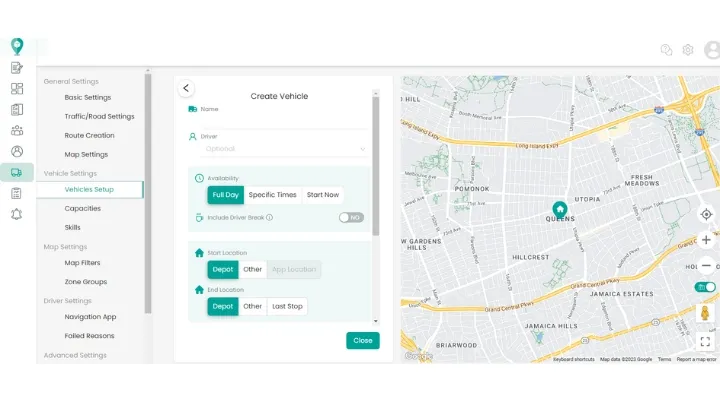
Click + Create Vehicle in the top right corner to open the configuration drawer.
Start with the vehicle name and assign a driver if one is already allocated to the asset. You can leave the driver field blank if assignments change daily, which lets dispatchers assign routes during planning.
Next, define the working schedule. You can set a standard shift window, choose full-day availability, or activate Advanced Vehicle Shifts to set different operating hours across individual days of the week.
If your drivers take scheduled rest breaks, toggle on driver breaks and specify both the duration and the allowed time window. The planning engine uses this window to automatically schedule the driver's stop at an appropriate point during the route.
Select where the vehicle begins and finishes its day. Most fleets set both to the central depot, but you can choose the driver app location or last delivery stop for drivers who commute with their vehicle.
Finally, set vehicle capacities such as maximum weight, volume, or total stop counts. Once saved, SmartRoutes immediately includes the vehicle in route calculations.
Updating and Removing Vehicles
When a vehicle goes in for routine servicing or a driver takes scheduled leave, you can switch off the Active toggle in the main table. Inactive vehicles remain saved in your account for future use, but the algorithm will not assign any stops to them during planning.
To update shift times or reassign regular drivers, click any vehicle row to reopen its settings drawer, apply your changes, and save.
If a vehicle leaves your fleet permanently, open its configuration drawer, scroll to the bottom, and select Delete Vehicle. Confirm the prompt to remove the record completely from your platform.
Need to Add More Vehicles to your Plan?
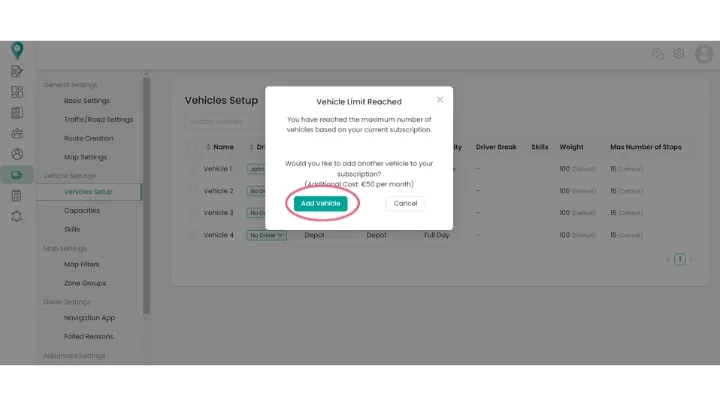
If adding a new vehicle puts your total fleet count above the allowance on your current subscription tier, SmartRoutes prompts you before creating the vehicle. This will update your subscription, and the vehicle becomes available immediately for routing.
Didn’t answer your question?
You can see our other guides here or contact support at support@smartroutes.io.
Please provide us with some additional feedback
Thanks for your feedback. It is greatly appreciated