
Reviewing your spreadsheet before uploading saves time later. Most upload errors come down to address formatting or column headers, both of which are easy to fix once you know what to look for.
The ideal address format
Arrange address information from most specific to least specific:
Street Address, City, County/State, Country, Eircode/Postcode/Zip code
Example: 21 Cook Street, Cork City, Cork, Ireland, T12 K3KA
This can be entered as a single combined column in your spreadsheet, or split across separate columns (Street, City, County, Country, Postcode). Both formats work, as long as each piece of information is clearly separated and consistent across every row.

Fixing an address error during upload
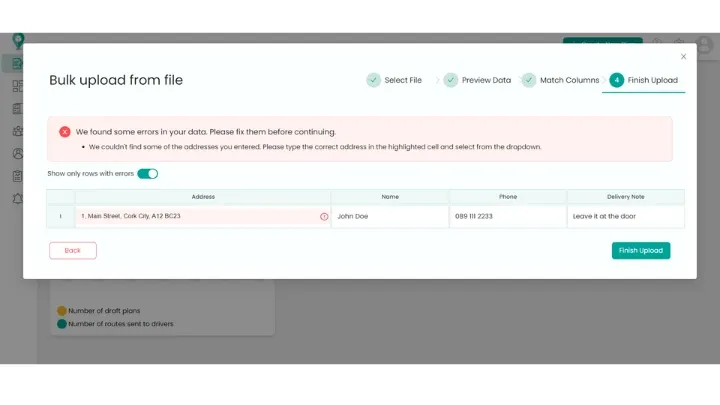
If an address in your spreadsheet contains an error, you'll see an error message highlighting the problem row.
- Double-click the highlighted box.
- Correct the address directly in the field.
- Click Finish Upload.
- Generate your routes as normal.
Common upload issues
Header rows don't match
If your header row uses different wording than SmartRoutes recognizes, for example "Delivery Address" instead of "Address", you'll be prompted to match your headers on the next screen.
Missing row headers
Your spreadsheet's first row should be the header row. If it isn't, you'll need to select My file has no header row during upload, then manually match each column to the correct field from the dropdown menu.
Missing column data
If a column has a header but no data underneath it, SmartRoutes will ignore that column entirely. Make sure every column you want included actually has data in it, an empty column won't cause an error, but it also won't be used.
Other formatting rules to follow
- Keep information separated by column, don't combine name and address in a single cell.
- Don't include images in your spreadsheet.
- Try not to upload spreadsheets with more than one tab.
For the full breakdown on structuring your file correctly from the start, see How to Format and Upload Spreadsheets and CSV Files.
Didn’t answer your question?
You can see our other guides here or contact support at support@smartroutes.io.
Please provide us with some additional feedback
Thanks for your feedback. It is greatly appreciated