
Once a route has been dispatched, it is live on the driver's mobile app. That doesn't mean it's locked. You can still reorder stops, add or remove stops, insert driver breaks, and reverse the route entirely.
Any change you save is pushed straight to the driver's phone, with a notification letting them know their route has updated.
This guide covers every edit available once a route is dispatched.
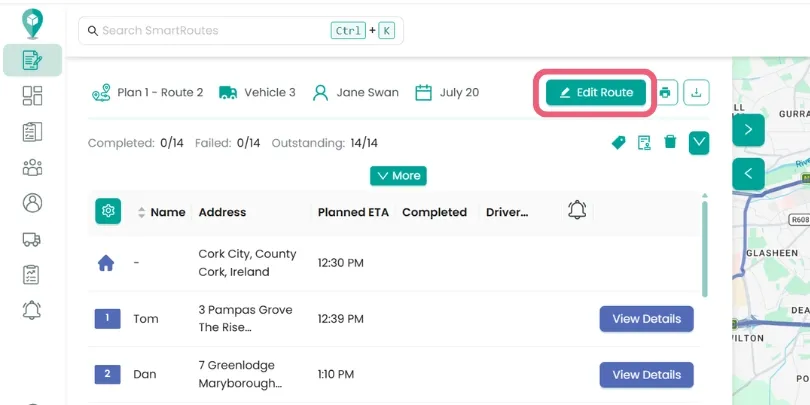
What counts as a dispatched route?
A route becomes dispatched the moment you send it to a driver. From that point, the driver can see their stop list and turn-by-turn directions on the mobile app.
If your plans change after this point (traffic, a late order, a cancelled delivery), you don't need to redo the whole route. You can edit it directly and the driver's app updates automatically.

Reorder stops
If a stop needs to be visited earlier or later in the sequence, for example a customer requests a specific time, you can move it without rebuilding the route.
How to do it:
- Click Edit Route.
- Drag the stop you want to reposition directly to its new place in the list, and drop it.
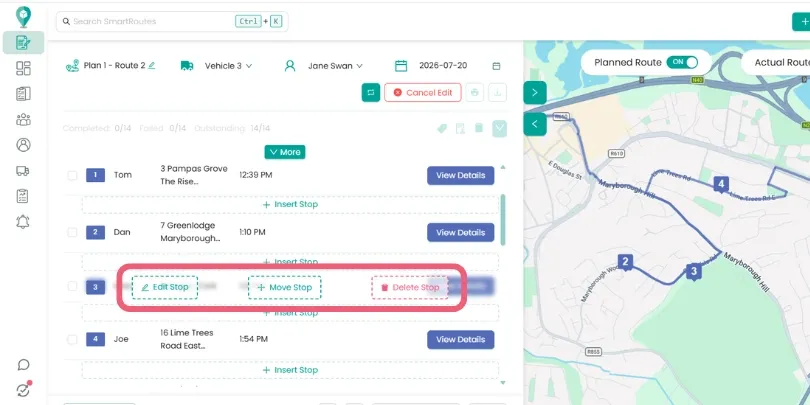
Top tip: you can type a new number directly into the sequence field next to a stop (e.g., changing "3" to "1") to jump it to that position instantly, which is a faster alternative to dragging for longer routes.
Delete a stop
If a delivery is cancelled or needs to be moved to a different route, you can remove it from the live route directly. Just click Delete Stop next to the stop you want to remove. The stop is taken off the driver's app immediately once you save.
You will then be prompted to enter a reason for deleting the stop. This gets logged for reference later and is useful for accountability & reporting.
Insert a new stop or driver break
If a new order comes in after dispatch, or a driver needs a scheduled break added to their day, you can insert either directly into the live route.
How to do it:
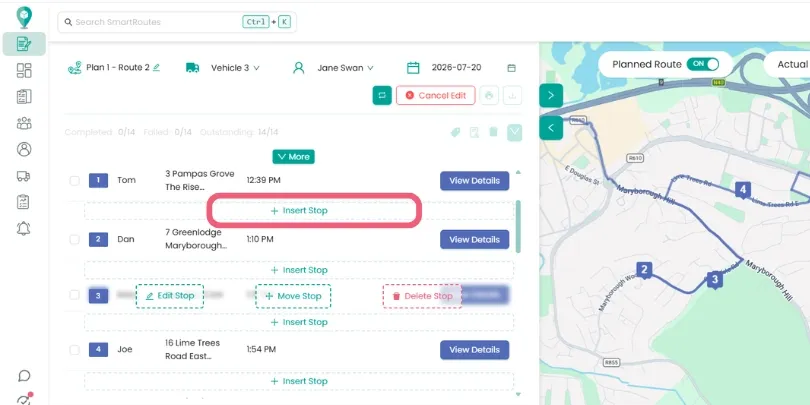
- Click Insert Stop.
- Choose whether you're adding:
- A new delivery stop: manually enter the address and any stop details (you can also choose from your orders and customers lists)
- A Driver Break: set the duration and where in the route it should fall
- A Depot Refill stop: inserts a mandatory return-to-depot point in the sequence
- Place it at the correct point in the sequence.
This is useful for keeping drivers compliant with required rest breaks without needing to plan them in from the start.
Reverse the route
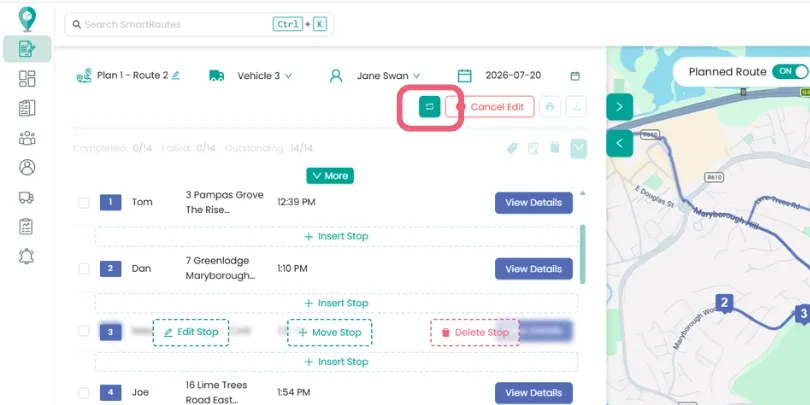
If conditions change, for example the driver is coming from the opposite direction, or you want to run the stop sequence backwards, you can flip the entire route in one click. Just click Reverse Route as shown.
This reverses the order of all remaining stops from the driver's current position. It's a quick way to adjust for changed circumstances without rebuilding stop by stop.
Delete a route and start over
If a route needs to be scrapped entirely rather than edited, you can open the route details screen and then click the bin icon.
This removes the route. Any undelivered stops will need to be added to a new route.
Save vs. Re-optimize
Once you've made your edits, either reordering, deleting, or inserting stops, you'll need to decide how to apply the changes: Save or Re-optimize.
- Save locks in your manual changes exactly as you've arranged them. Use this if you've dragged stops into a specific order, deleted a stop, or inserted a new one and you're happy with where it sits in the sequence. Nothing else about the route is recalculated.
- Re-optimize recalculates the best possible stop sequence automatically. This is useful when you've inserted new stops (for example, a new delivery or a depot refill) and want the system to slot them into the most efficient position, rather than leaving them exactly where you dropped them.
Related guides:
- How to Edit a Draft Route
- How To Dispatch a Route
- How to Adjust the Start Time of a Route
- How to Move Stops from One Dispatched Route to Another
Didn’t answer your question?
You can see our other guides here or contact support at support@smartroutes.io.
Please provide us with some additional feedback
Thanks for your feedback. It is greatly appreciated