
Every person who touches your SmartRoutes account, from dispatchers to drivers to third-party partners, should have their own login with the right level of access.
This guide covers the user roles available, how to add a new team member, and how to manage passwords once someone is set up.
User role types
Roles determine what a user can see and do across both the desktop app and the driver mobile app, so it's worth assigning the right one from the start rather than defaulting everyone to Administrator.
1. Administrator
The account creator is automatically assigned the Administrator role, and additional administrators can be added at any time. Administrators have full access to both the desktop and mobile apps and can:
- Add and manage team members
- Configure notifications
- Access reports and analytics
- Adjust account settings and customization
2. Driver
The Driver role gives access exclusively to the driver mobile app. Administrators can customize permissions per driver, such as requiring Proof of Delivery (POD) with e-signatures or photos. Drivers can:
- View and manage their assigned routes
- Update delivery statuses in real time
- Capture POD where required
Drivers only see routes specifically assigned to them.
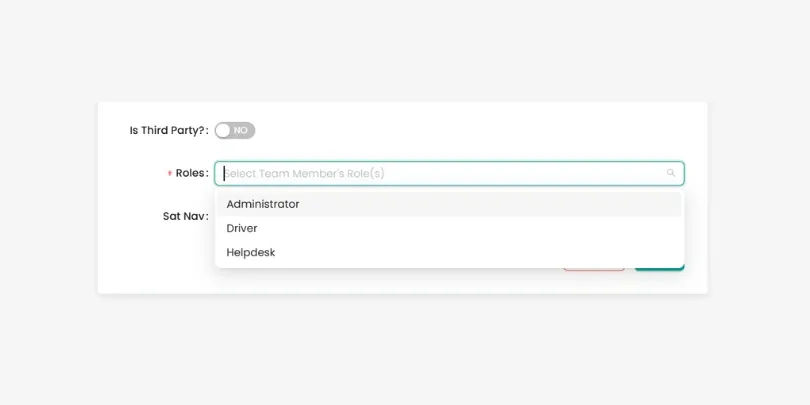
3. Helpdesk
Helpdesk users get read-only access to the desktop app, which suits customer service or support teams. Access is limited to:
- Live Dashboard: monitor real-time delivery progress
- Reports: view delivery records and POD details
Custom Helpdesk permissions are available on request. Contact support@smartroutes.io to set this up.
4. Multi Depot
The Multi Depot role carries the same permissions as a standard Administrator, extended across every depot on the account.
Multi-Depot Administrators can manage team members, routes, and reports across all locations. (This role is only available on accounts with multi-depot functionality enabled.)
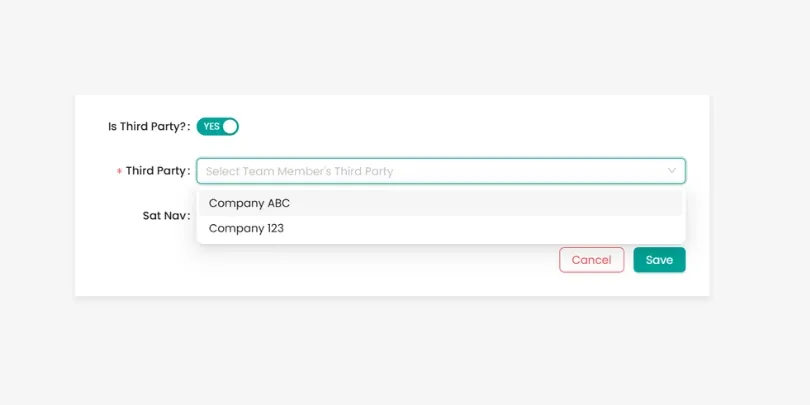
5. Third Party
Third-party users get a restricted view built for external partners, such as clients or subcontracted couriers, who need visibility on specific deliveries without full account access.

How to add a new team member
Only Administrator users can add new team members.
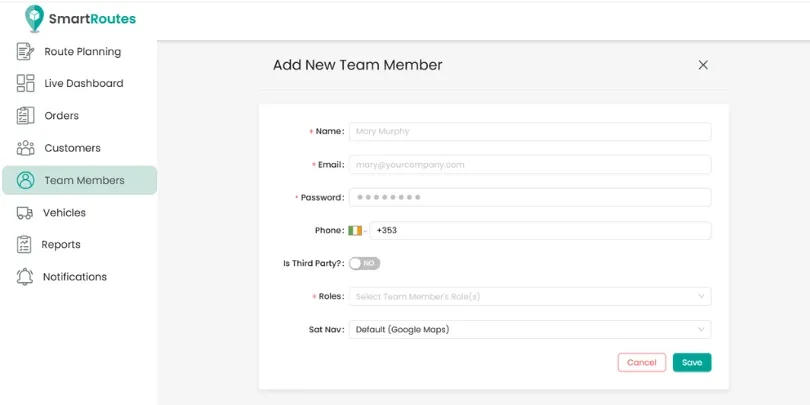
- In the left-hand navigation menu, click Team Members.
- Click Add New Team Member.
- Fill in the required fields:
- Name
- Password
- Phone number
- Role (Administrator, Driver, Helpdesk, or Multi-Depot Administrator)
- Default navigation app (Google Maps, Waze, or Apple Maps), used for drivers who need turn-by-turn directions
- If this person is a third-party user, toggle Is Third Party to "Yes" and select their company from the dropdown.
- Adjust any role-specific permissions if needed.
- Click Save.
Top Tip: Fields like phone number and default navigation app might seem optional, but they matter in practice!
Keep the password you set to share with the team member. This is the password they will use to log in for the first time.
You can return to Team Members at any time to edit user information, adjust permissions, remove users, or add new members.
Changing a password
There are two ways to update a password, depending on who needs the change.
If a team member has forgotten their own password:
Go to the SmartRoutes login page and click Forgot Password, then follow the prompts to reset it by email.
If you're an administrator changing someone else's password (or your own):
- Go to the Team Members tab.
- Click the name of the team member whose password needs updating.
- Click Change Password, enter the new password, and click Save.
It's good practice to review team member access periodically, particularly for third-party or Helpdesk users who may only need temporary visibility. Removing or downgrading access for anyone who no longer needs it keeps your account secure without disrupting active team members.
Didn’t answer your question?
You can see our other guides here or contact support at support@smartroutes.io.
Please provide us with some additional feedback
Thanks for your feedback. It is greatly appreciated