
Sometimes a route is dispatched to a driver and later turns out to be unbalanced, one driver ends up with too many stops while another has spare capacity. Rather than cancelling and re-planning routes from scratch, SmartRoutes lets you move individual stops between routes that have already been dispatched, so you can rebalance workloads on the fly.
This is especially useful when:
- A last-minute order comes in and it makes more sense to add it to a driver who's already nearby.
- One route is running long and needs a few stops taken off it to keep the driver on schedule.
- You want to consolidate stops onto fewer vehicles after some orders are cancelled.
1. Select the stops you want to move
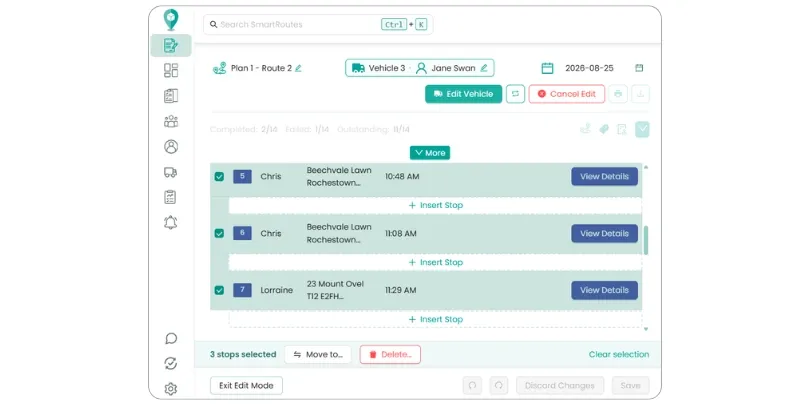
Open the dispatched route you want to move stops from and click Edit Route. From here, select the specific stops you want to move, you can select just one, or several at once if you're moving a batch.
2. Move the selected stops to another route
With your stops selected:
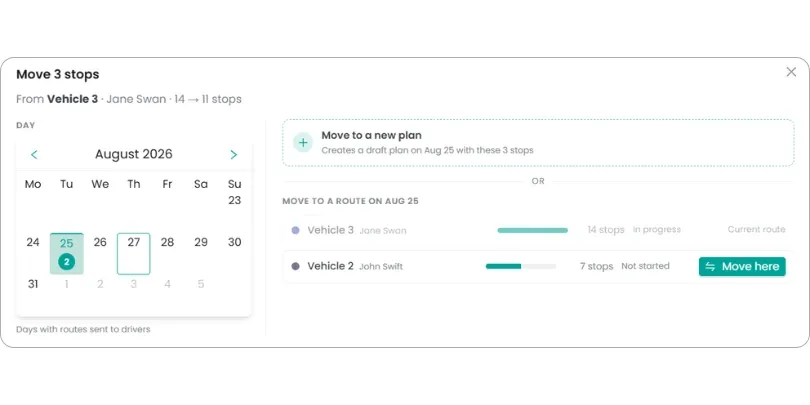
- Click Move To.
- You'll see a list of other dispatched routes available as destinations.
- Choose the route you want to move the stops to.
- Click Move Here to confirm your choice.
- Click Save to apply the change.
Because both routes have already been dispatched, this update effectively edits two live routes in one action, removing the stops from the original route and adding them to the new one.
3. Confirm the changes
After saving, head back to the main dashboard and check the stop counts for both routes. You should see the numbers update to reflect the move.
If you open the destination route, you'll notice the newly added stops appear at the end of the existing stop sequence, rather than being automatically re-optimized into the middle of the route. If stop order matters (for example, for time-sensitive deliveries), you may want to manually reorder the stops after moving them. Or you can click 'Re-optimize' before saving so SmartRoutes does this for you!
Tips for moving stops between dispatched routes
- Try to move stops to routes that are geographically nearby, so the added stops don't create an inefficient detour for the receiving driver.
- If timing matters, check the destination route's schedule to make sure adding extra stops doesn't cause the driver to run late.
- Since new stops are added at the end of the route by default, review and manually reorder them if the sequence needs to make more sense for the driver's path.
Related guides
- Make Changes to Already Dispatched Routes
- How to Edit a Draft Route
- How to Dispatch a Route
- How to Adjust the Start Time of a Route
Didn’t answer your question?
You can see our other guides here or contact support at support@smartroutes.io.
Please provide us with some additional feedback
Thanks for your feedback. It is greatly appreciated