
A draft route is any route that has been planned but not yet dispatched to a driver.
Before you hit dispatch, you have full control to edit stops, swap drivers or vehicles, add tags and notes, and re-optimize the route order.
This guide walks through every edit available at the draft stage.
What counts as a draft route?
When you create and optimize a route in SmartRoutes, it sits in draft until you choose to dispatch it to a driver.
Draft routes appear under your current plan in the Route Planning screen. Nothing has been sent to a driver yet, so any changes you make here do not trigger any notifications.
Edit a stop's details
Each stop on your route holds more information than just an address. You can add tags, delivery instructions, time windows, and custom notes at any point before dispatch.
How to do it
- Open your plan from the Route Planning screen.
- Click on the stop you want to update from the stop list.
- Click Additional Details.
- Add or update any of the following:
- Tags: label a stop for operational purposes, for example "Assemble" or "Fragile"
- Delivery notes: any instructions the driver needs at this stop
- Time window: the window within which the delivery must be made
- Custom fields: any fields your account has been set up with
- Click Close to save and return to the route.
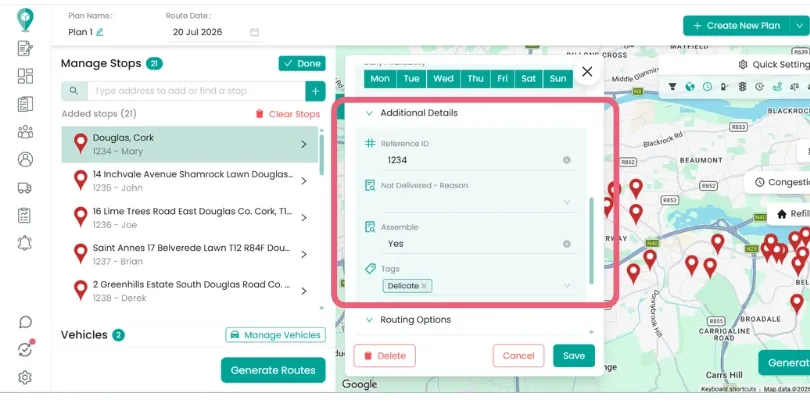
Top Tip: Tags are particularly useful when your drivers need to complete a specific task at a stop, or when you want to filter and report on certain stop types after the route runs.
Delete a stop
If a stop no longer needs to be on the route, for example, a customer cancelled or the stop is better suited to a different route, you can remove it in a couple of clicks.
How to do it
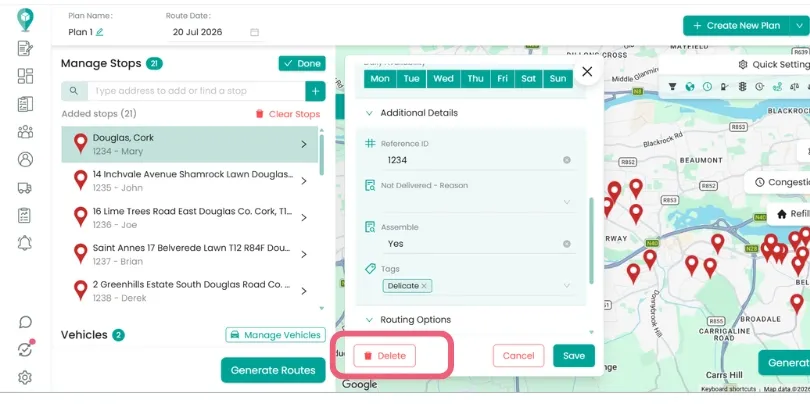
- Click on the stop from the stop list.
- Click Delete.
The stop is removed from the route immediately. It is not deleted from your system, so you can add it to a different route or plan at any time.
Change the driver or vehicle
If the driver you originally assigned to a route is not available, or you need to move the route to a different vehicle, you can update this without rebuilding the route.
How to do it:
- Click Manage Vehicles from within the plan.
- Select the correct driver from the dropdown.
- While in this screen, you can also:
- Update the driver's working hours for the day
- Add a scheduled driver break
- Change the vehicle type or capacity
- Click Done.
If you regularly need to reassign routes, it's worth setting up your driver profiles fully in advance so the dropdown always shows accurate availability. See How to add drivers for more on this.
Re-optimize the route
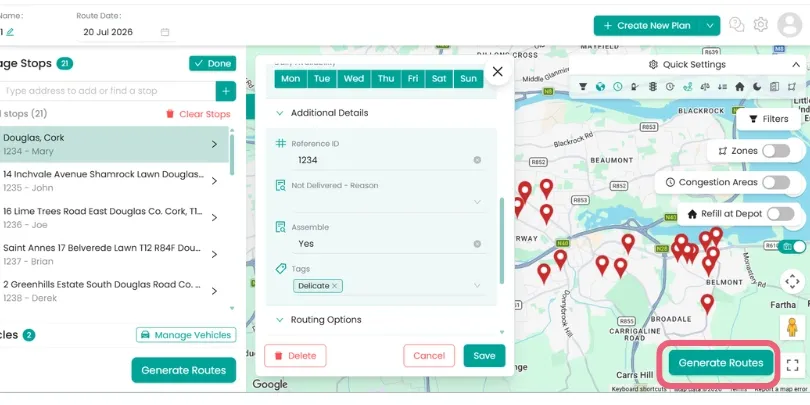
After making any changes, removing stops, adding a vehicle, or changing a time window, click Re-Optimize to recalculate the route order and update all estimated arrival times.
Re-optimizing takes your latest parameters into account: the updated stop list, driver hours, vehicle capacity, and any time windows you've set. The route will update on the map and all ETAs will recalculate.
Top Tip: You can make as many edits as needed and re-optimize each time before dispatching.
Delete a route
If you want to remove the entire route and start again:
- Click View Route to open the route details.
- Click the dropdown menu.
- Select Delete Route.
This removes the route from your plan. Any stops that were on it will need to be re-added to a new route.
When you're ready: dispatch
Once you're happy with the route, click Dispatch to send it to the driver's mobile app. The driver will receive a push notification and the route will move from draft to live. From that point, see How to edit a live (dispatched) route if you need to make further changes.
Didn’t answer your question?
You can see our other guides here or contact support at support@smartroutes.io.
Please provide us with some additional feedback
Thanks for your feedback. It is greatly appreciated