
Once you are logged into the driver app and have started your route, you can start taking proof of delivery as you complete deliveries. You can take POD through SmartRoutes in a few ways. 1. Photo, 2. eSignature and 3. Barcode Scan.
Access the Proof of Delivery Menu
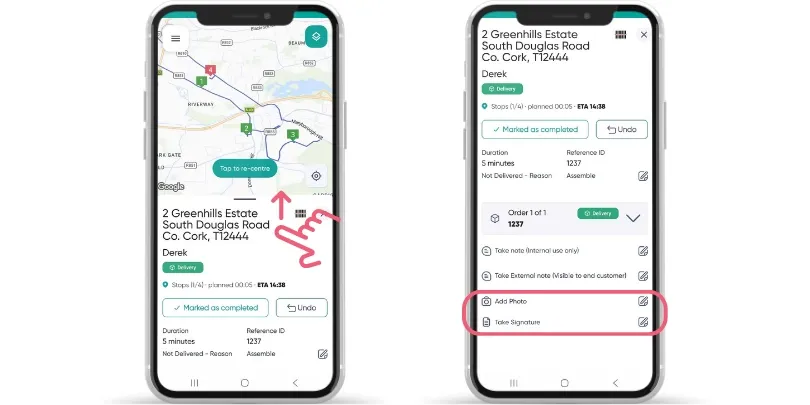
- In the SmartRoutes driver app, select your active stop on the route map or list.
- Once you arrive and mark the delivery as completed, swipe up on the bottom stop drawer to open the full order details and POD actions.
- From this expanded view, you can capture photos, collect signatures, scan barcodes, and record internal or customer-facing delivery notes.
Capture Photo Proof of Delivery
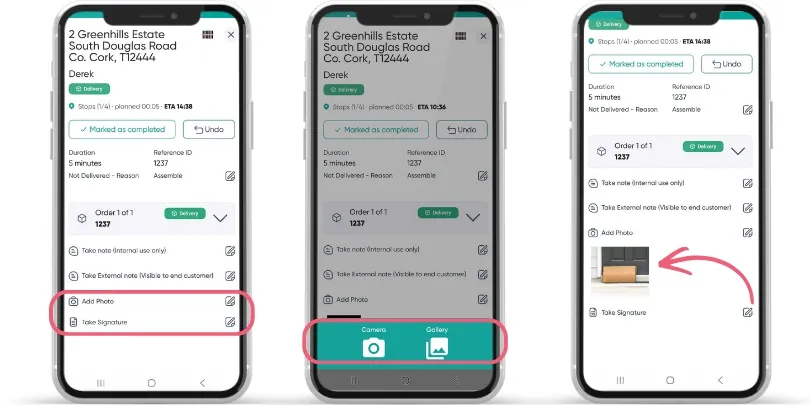
Photo proof of delivery is ideal for unattended drop-offs or confirming item condition upon arrival:
- On the expanded stop screen, tap Add Photo.
- Use your mobile camera to take a clear photo of the package at the doorstep, safe location, or loading bay.
- The captured photo immediately previews in the order card.
- Tap the edit icon if you need to add additional photos or retake an image.
Collect an E-Signature
For deliveries requiring recipient sign-off:
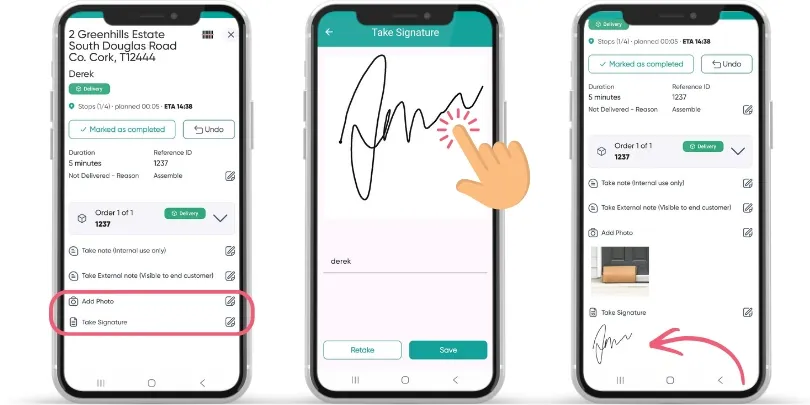
- Tap Take Signature on the order screen.
- Present your device to the customer to collect their digital signature directly on screen.
- Type the recipient's name in the text field below the signature line to ensure accurate records.
- Tap Save to confirm, or tap Retake if the customer needs to sign again.
Once saved, the signature renders directly inside the order summary for that stop.
Scan or Enter Barcodes
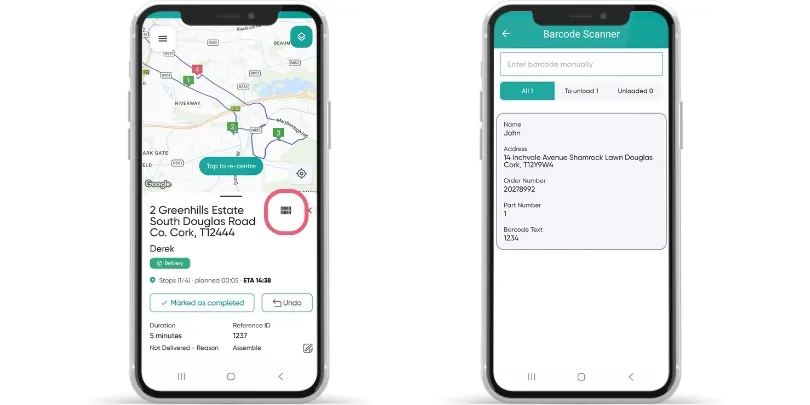
SmartRoutes includes an integrated barcode scanner to verify you are dropping off the correct packages at each location:
- Tap the Barcode icon located in the top right of the stop details card.
- Point your mobile device camera at the shipping label or parcel barcode to scan it automatically.
- The scanner displays the items to unload along with recipient names, delivery addresses, and part numbers.
- Manual Barcode Entry: If a barcode label is torn, smudged, or damaged and will not scan with the camera, tap into the "Enter barcode manually" field at the top of the screen to type in the alphanumeric code directly.
Add Delivery Notes (Optional)
Drivers can also add contextual notes to any delivery:
- Take note (Internal use only): Record private comments for dispatchers and office staff (e.g., gate access code issues or vehicle parking notes).
- Take External note (Visible to end customer): Add messages that will be visible to the customer on their digital tracking and receipt portal (e.g., "Left inside front porch").
How POD Data is Stored & Shared
All captured photos, electronic signatures, barcode scans, and delivery timestamps sync automatically back to the desktop dashboard in real time.
If automated customer notifications are enabled, SmartRoutes can instantly attach the proof of delivery photo and tracking confirmation into the customer’s delivery completion email or SMS message.
Related Guides
- Proof of Delivery Rules
- How to Set Up Customer Notifications
- How to Set Up Driver Questionnaires
- How to Track Drivers in Real Time
- How to Access Driver Analytics and Reports
Didn’t answer your question?
You can see our other guides here or contact support at support@smartroutes.io.
Please provide us with some additional feedback
Thanks for your feedback. It is greatly appreciated