
There are 3 ways to add stops to a plan in SmartRoutes, manually, via spreadsheet, or by pulling from existing customers and orders. Which one to use depends on how much data you're adding and whether it already exists in the system.
Option 1: Add stops manually
- Open SmartRoutes and click Create Plan Manually.
- Click Manually Add One Stop at a Time.
- Enter the stop details, including address, contact information, and any delivery notes.
- Click Save to add the stop to your plan.
- Repeat for each additional stop.
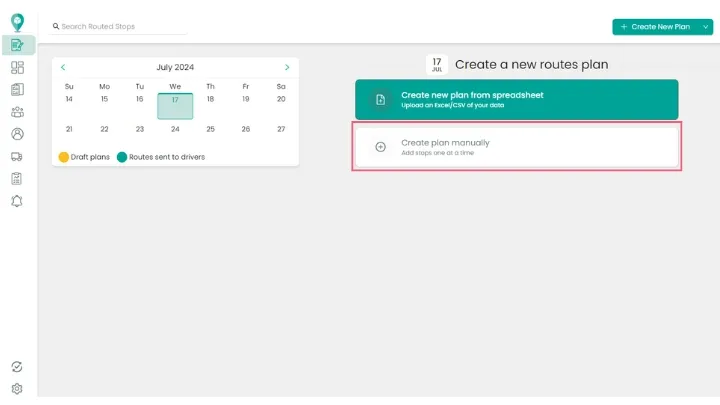
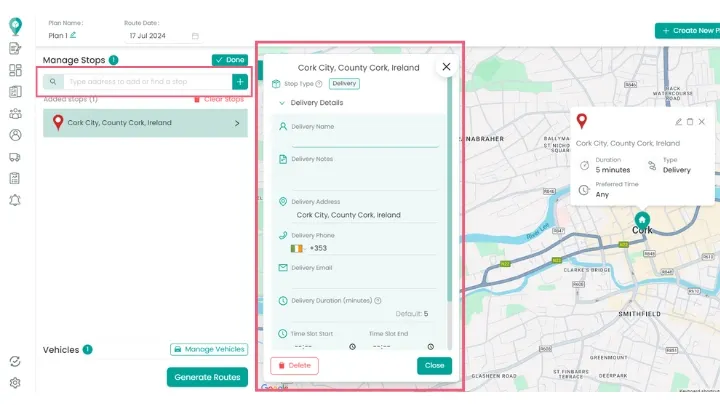
This method suits small numbers of stops or one-off additions, since entering stops one at a time is slower than a bulk upload for larger volumes.
Option 2: Upload a spreadsheet
If you have a list of deliveries already in a spreadsheet, upload it directly rather than entering stops one by one.
For the full walkthrough on formatting your file and matching columns correctly, see How to Format and Upload Spreadsheets and CSV Files.
Option 3: Add from Customers or Orders
If you're delivering to repeat customers, or already have orders logged in the system, you can add stops directly from either the Customers or Orders tab instead of re-entering details manually.
From Customers
- Go to the Customers tab.
- Select the customer (or customers) you want to add.
- Add them directly to your draft plan.
From Orders
- Go to the Orders tab.
- Use the status filters, such as Open or Failed, to find orders that still need to be added to a route.
- Select the relevant orders and add them to your draft plan.
Filtering by status is particularly useful for catching orders that haven't been routed yet, or deliveries that failed and need to be rescheduled, without having to search through your full order list manually.
Didn’t answer your question?
You can see our other guides here or contact support at support@smartroutes.io.
Please provide us with some additional feedback
Thanks for your feedback. It is greatly appreciated