
If your operation involves both picking items up from certain addresses and delivering to others, SmartRoutes can handle both in the same plan. Every stop can be set as a collection or a delivery, and the route optimization engine takes this into account when building your routes.
Why stop type matters
Setting stops correctly as collection or delivery isn't just a labelling exercise, it directly affects how your routes are built. When SmartRoutes knows which stops are collections and which are deliveries, it can sequence them so drivers aren't backtracking across the same area twice, once to collect an item and again to deliver something nearby.
This is particularly useful for businesses that handle both, for example furniture retailers collecting old items while delivering new ones, or couriers picking up parcels from multiple senders before delivering them to different recipients.
Add collection stops using a spreadsheet
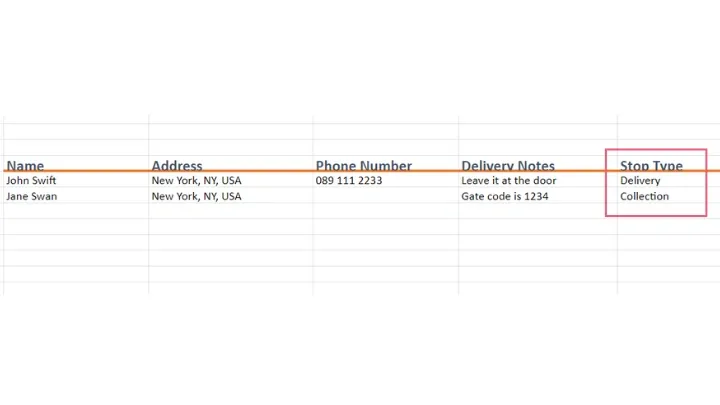
If you're uploading your stops via spreadsheet, add a column headed Stop Type, and mark each row as either delivery or collection.
If you're working from an existing spreadsheet that doesn't have this column yet, insert it before uploading and make sure every stop is correctly categorized. Incorrectly labelled stops won't cause an error, but they will be optimized as though they're the wrong type, which can lead to inefficient routing.
For more on formatting your file correctly before upload, see How to Format and Upload Spreadsheets and CSV Files.
Add collection stops manually
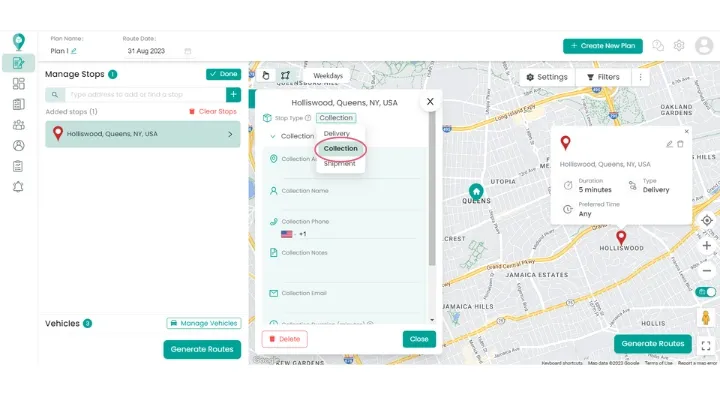
When adding a stop manually rather than via spreadsheet, set the Stop Type field on the form to delivery or collection.
This is the quicker option for one-off additions, for example a last-minute pickup request that needs to be slotted into a plan that's already been created. If you need to make this kind of change to a plan you've already generated, see How to Edit a Draft Route for the full set of options available before dispatch.
Spreadsheet or manual: which should you use?
Both methods produce the same result, categorizing correctly is what matters, not which method you use. As a general guide:
- Spreadsheet upload suits larger batches of stops, or when you're pulling data from an existing order management system
- Manual entry suits smaller adjustments, one-off stops, or last-minute changes to a plan already in progress
Once stops are correctly categorized, the route is optimized to avoid unnecessary detours, so drivers aren't doubling back between collection and delivery points that could have been grouped more efficiently.
Setting a default stop type
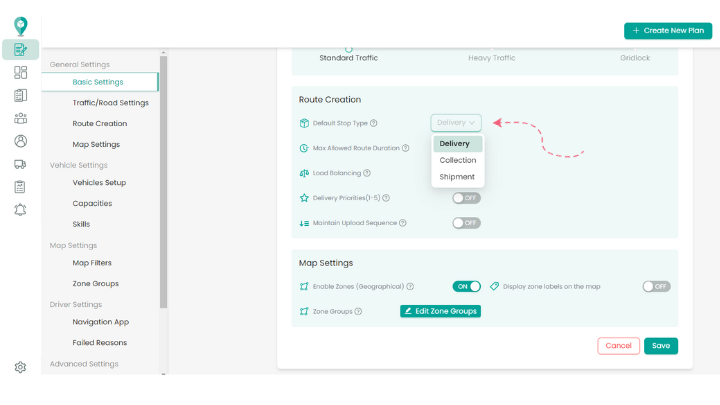
If your business primarily handles one type of stop, for example mostly collections, you can set that as the default so you don't need to categorize every upload manually.
How to do it
- Go to Settings > Route Creation > Default Stop Type.
- Select Collection or Delivery as your default.
- Save your changes.
From this point on, any stop uploaded without an explicit stop type will automatically be set to your chosen default. This keeps categorization consistent across your team, and reduces the chance of a stop being missed or mislabelled during a busy upload.
If your operation is mixed and you regularly handle both types, it's generally better to leave stop type unset at the account level and specify it per stop or per spreadsheet instead, since a single default won't fit both cases well.
Related guides
Didn’t answer your question?
You can see our other guides here or contact support at support@smartroutes.io.
Please provide us with some additional feedback
Thanks for your feedback. It is greatly appreciated