
Barcode and package scanning in SmartRoutes helps delivery teams maintain chain-of-custody tracking from the depot to the customer's door.
Scanning items on and off vehicles prevents loading mistakes, eliminates misplaced parcels, and creates an audit trail of every package handled by your fleet.
Scanning Settings
- Click on Settings in the left-hand navigation menu.
- Under Driver App, select Scanning.
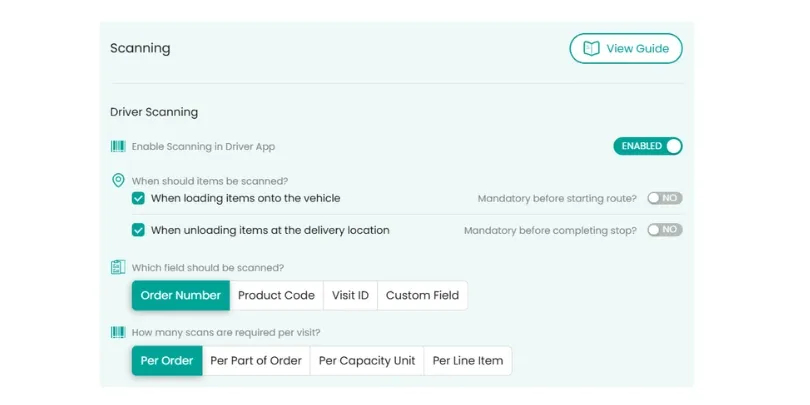
From this screen, you can define exactly when drivers are prompted to scan and at what level of detail packages are tracked:
- Scan onto the Vehicle (Loading): Drivers scan parcels at the depot or fulfillment hub during vehicle loading to confirm all assigned items are packed before dispatch.
- Scan off the Vehicle (Unloading/Drop-off): Drivers scan barcodes at each delivery stop before marking the stop complete to ensure packages are not handed over to the wrong recipient.
- Both Load and Unload: Recommended for maximum accountability, creating verified timestamps for when an item enters the vehicle and when it is delivered.
Optional vs. Mandatory Scanning
For each scanning stage, you can decide whether scanning is optional or mandatory:
- Optional Scanning: Drivers have the option to scan items, but they can skip scanning if an item is missing or damaged without being blocked from progressing.
- Mandatory Scanning:
- Mandatory before starting route: Drivers cannot tap "Start Route" in the mobile app until all assigned items for that vehicle run have been scanned.
- Mandatory before completing stop: Drivers cannot mark a stop as complete until every required parcel for that stop has been verified.
Choose Which Field Should Be Scanned
SmartRoutes supports flexible barcode matching so your drivers can scan whichever identifier is printed on your package labels:
- Order Number: Scans the overarching order or consignment ID associated with the delivery.
- Product Code: Scans individual product codes or SKUs within multi-item orders.
- Visit ID: Scans unique stop or visit identifiers if your operation routes by visit.
- Custom Field: Select from custom fields configured in your account (e.g., WMS External Order Level, Warehouse Bin Code, or Barcode On Product) to match external warehouse and ERP systems.
How Drivers Scan in the Mobile App
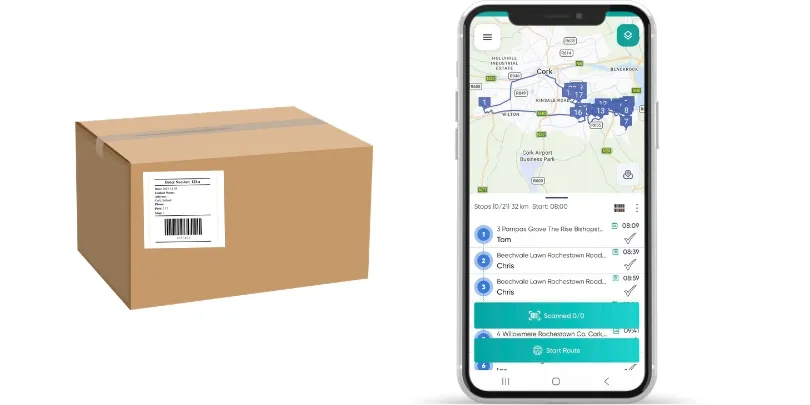
Once scanning rules are enabled, scanning prompts guide drivers through their route in the mobile app:
- Loading at the Depot: Drivers open their vehicle manifest and tap the Barcode Scanner icon to scan packages onto the vehicle before departure.
- Delivery at the Stop: Upon arrival, the driver opens the stop details and taps the Barcode Scanner icon.
- Camera Verification: Pointing the device camera at the shipping label instantly checks the barcode against the manifest and updates the item counter (e.g., To unload: 0/Unloaded: 1).
- Manual Barcode Entry: If a label is torn, smudged, or unreadable by the camera, drivers can tap the "Enter barcode manually" field to type in the barcode text directly.
Review Scanning Audit Logs
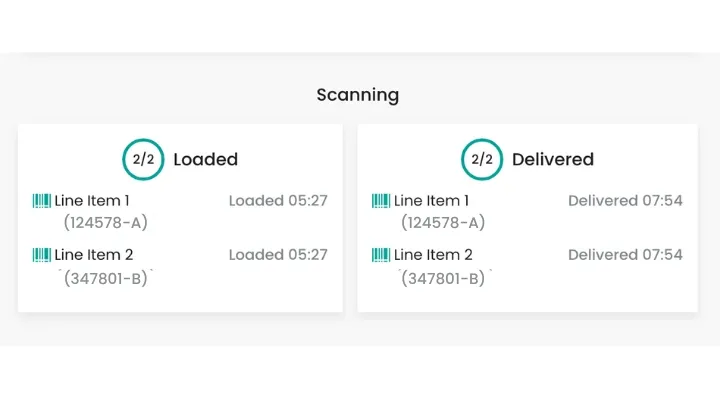
Dispatchers and operations managers can track barcode confirmations in real time from the desktop portal :
- Go to Orders or the Live Dashboard.
- Click into any completed order or delivery stop.
- The order view displays whether items were scanned successfully, the specific barcode values captured, and the precise timestamps for loading and unloading events.
Related Guides
- How to Take Proof of Delivery
- Proof of Delivery Rules
- How to Set Up Customer Notifications
- How to Access Driver Analytics and Reports
- How to Track Drivers in Real Time
Didn’t answer your question?
You can see our other guides here or contact support at support@smartroutes.io.
Please provide us with some additional feedback
Thanks for your feedback. It is greatly appreciated